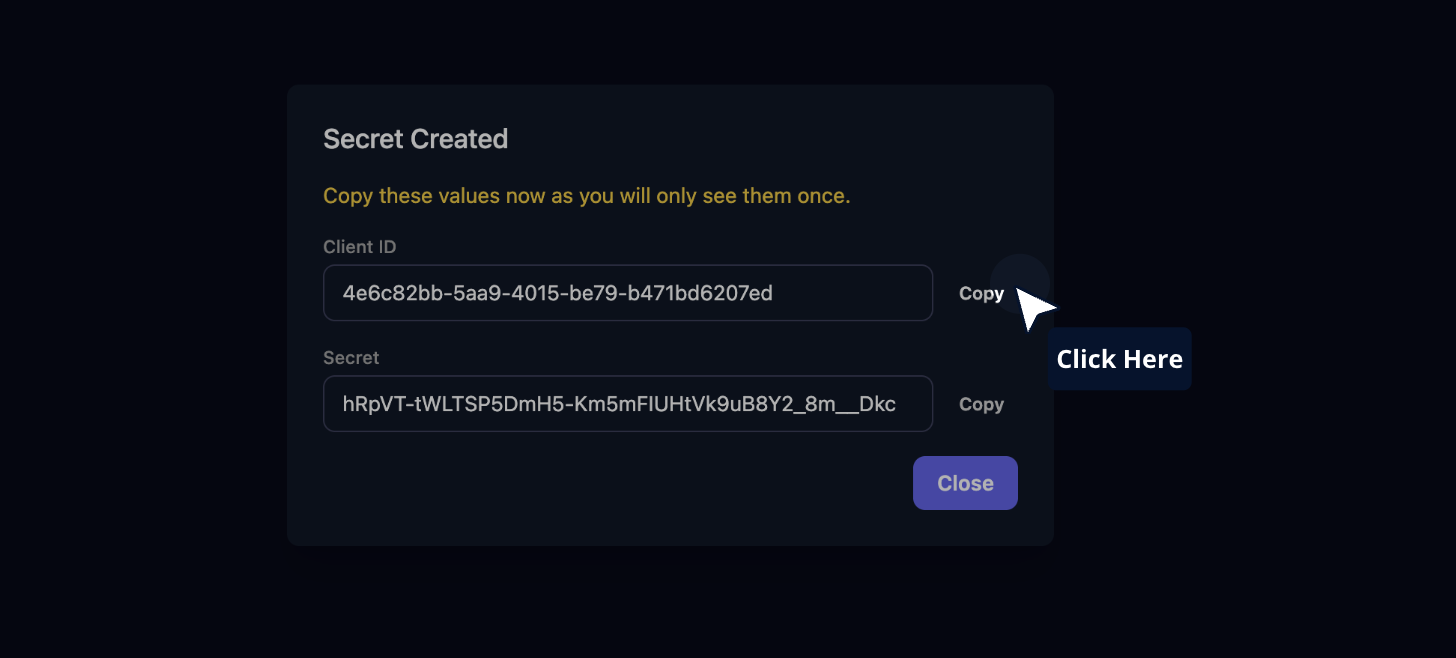
Generating Credentials
Introduction
A desktop agent is scoped to an individual Triggr client. Therefore, we need to generate agent credentials for that client to link to their desktop agent.
Setting Up Agent Credentials
Step 1: Navigate to Clients
Visit Clients
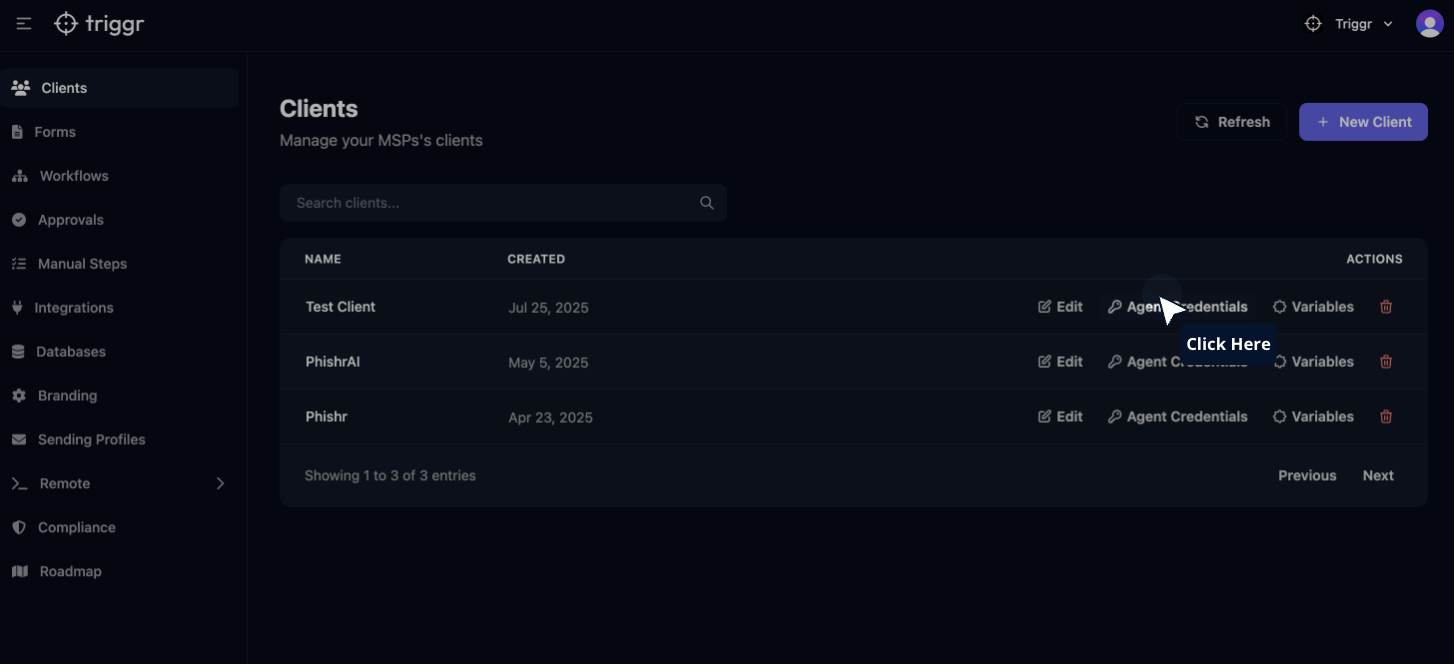
Step 2: Access Agent Credentials
Click on "Agent Credentials" for the client you want to link the desktop agent to. This button can be found in the client's row in the table.
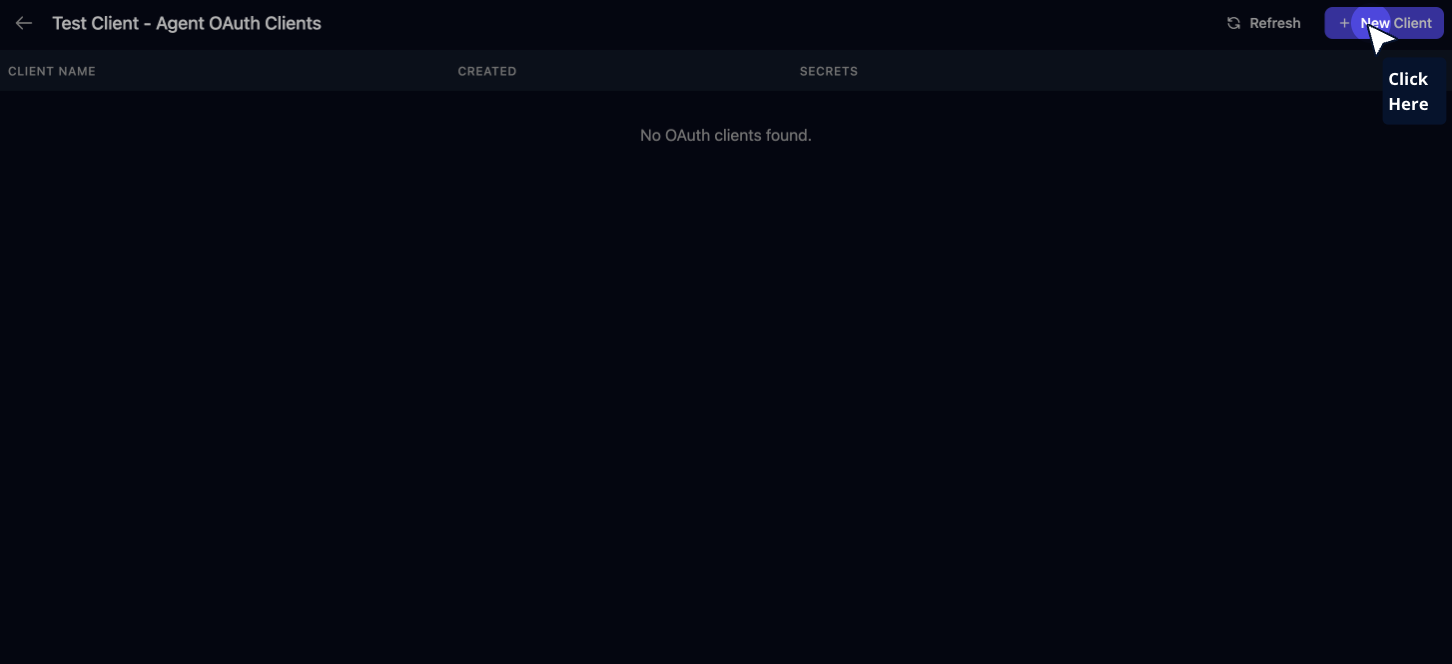
Step 3: Create New Client
Click on "New Client" in the window that appears
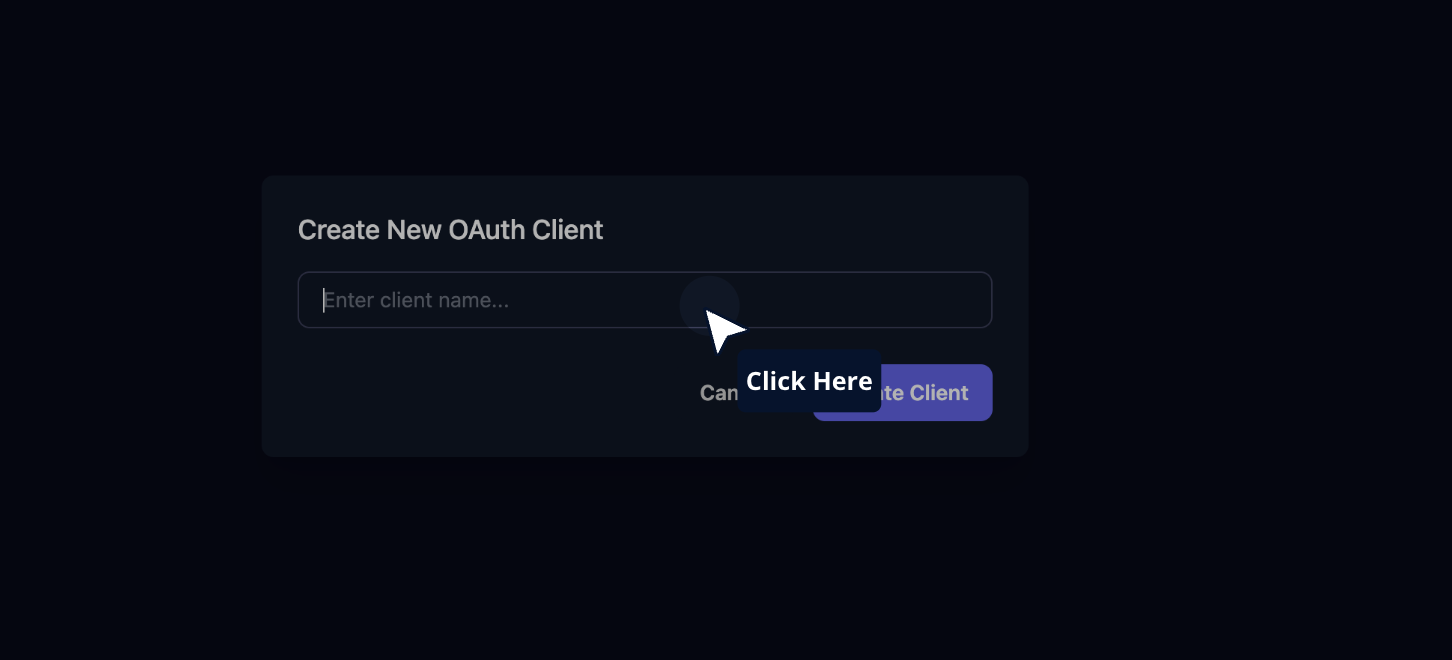
Step 4: Configure Client
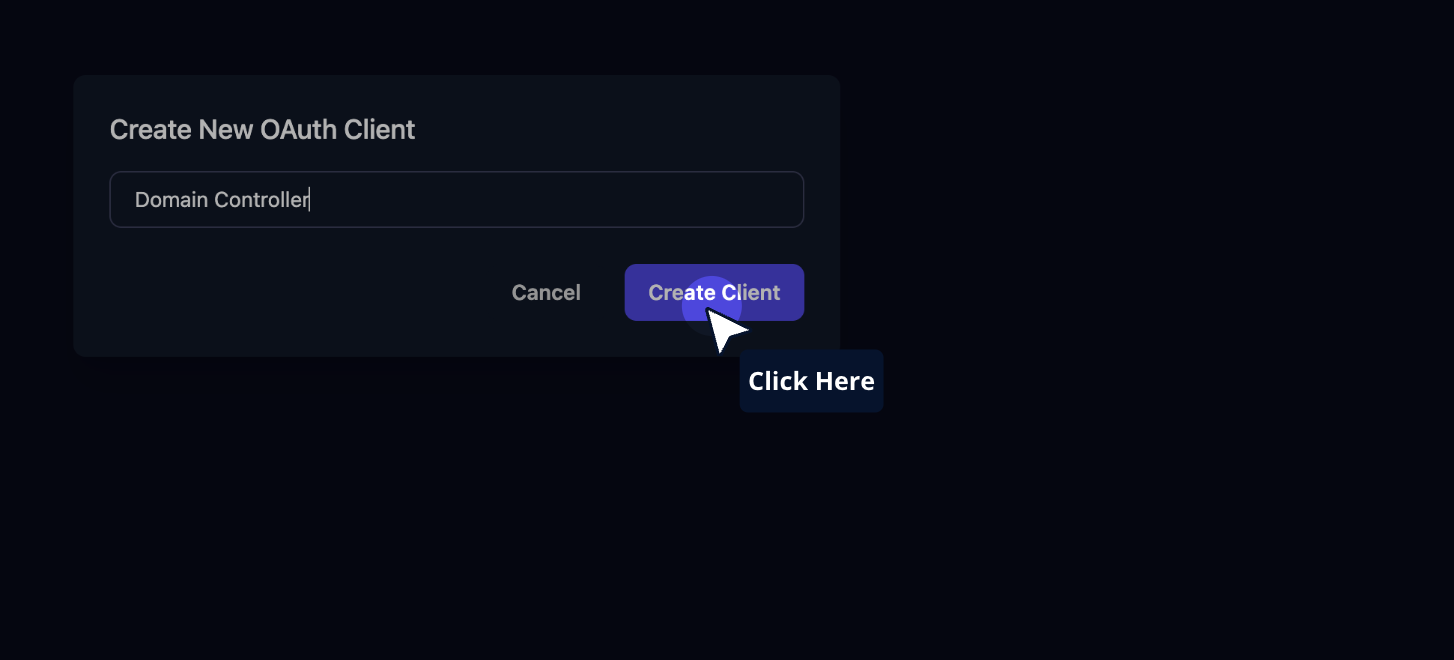
Type a unique identifier for the machine you're deploying the Triggr Desktop Agent to. For example: "Client Domain Controller"
Step 5: Create the Client
Click on "Create Client"
Step 6: Generate New Secret
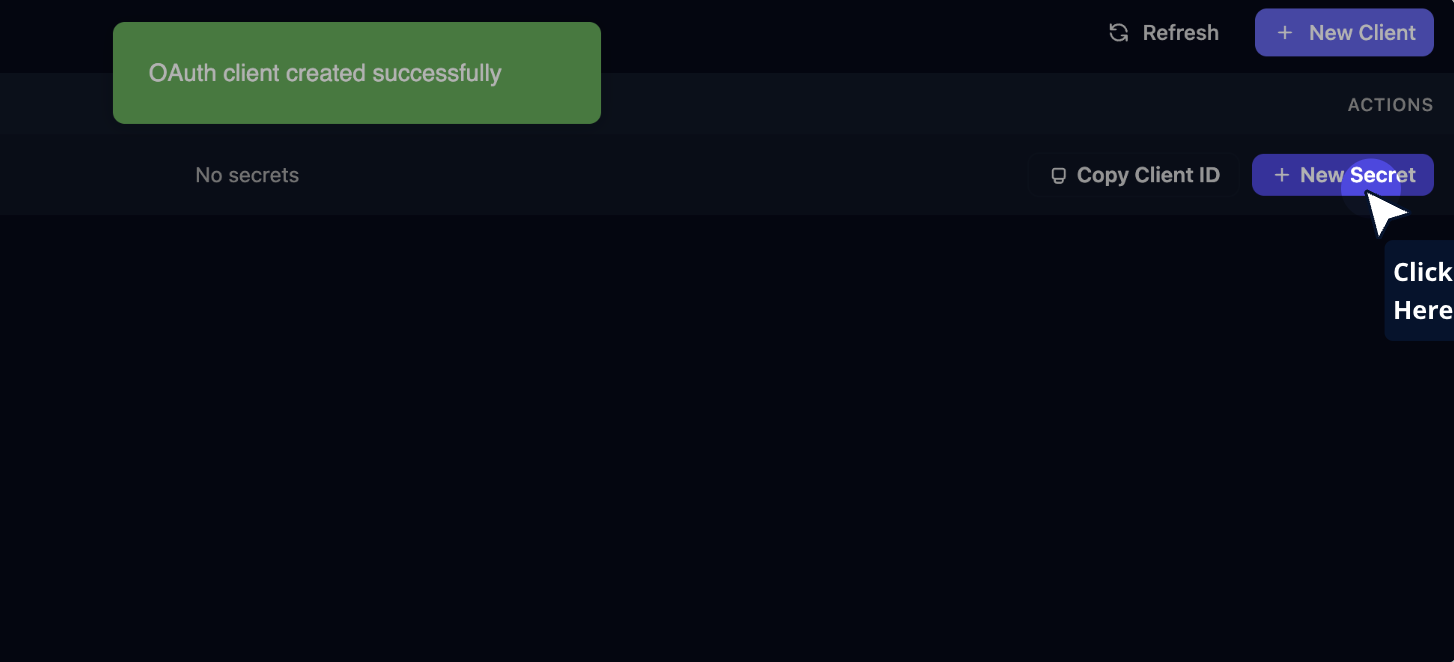
Click on "New Secret"
Step 7: Create the Secret
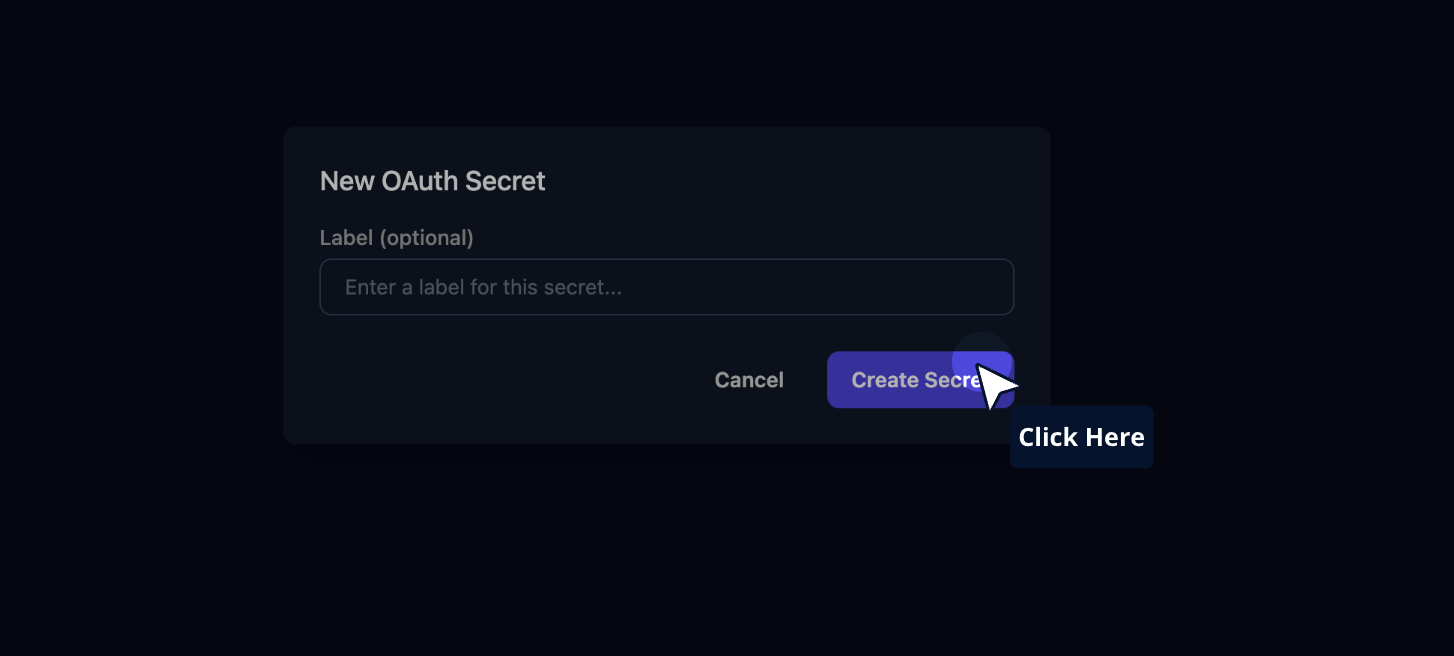
Click on "Create Secret"
Step 8: Copy Credentials
Copy the Client ID and Secret. These will be added to the desktop agent.