
Setting Up ConnectWise PSA Integration
This guide walks you through connecting your ConnectWise PSA (formerly ConnectWise Manage) instance to Triggr.
Overview
The ConnectWise PSA integration enables Triggr to automate tasks within your PSA, including:
- Managing tickets and service requests
- Creating and updating contacts
- Handling agreements and configurations
- Automating user onboarding/offboarding workflows
Prerequisites
Before you begin, ensure you have:
- Admin access to your ConnectWise PSA instance
- Access to System > Security Roles and System > Members in ConnectWise
Step 1: Create a Security Role in ConnectWise
First, create a dedicated security role for the Triggr API integration.
- In ConnectWise PSA, navigate to System > Security Roles
- Click the + button to create a new security role
- Name the role Triggr API
- Configure the permissions based on what automations you need (see Permission Requirements below)
- Save the security role
Step 2: Create an API Member
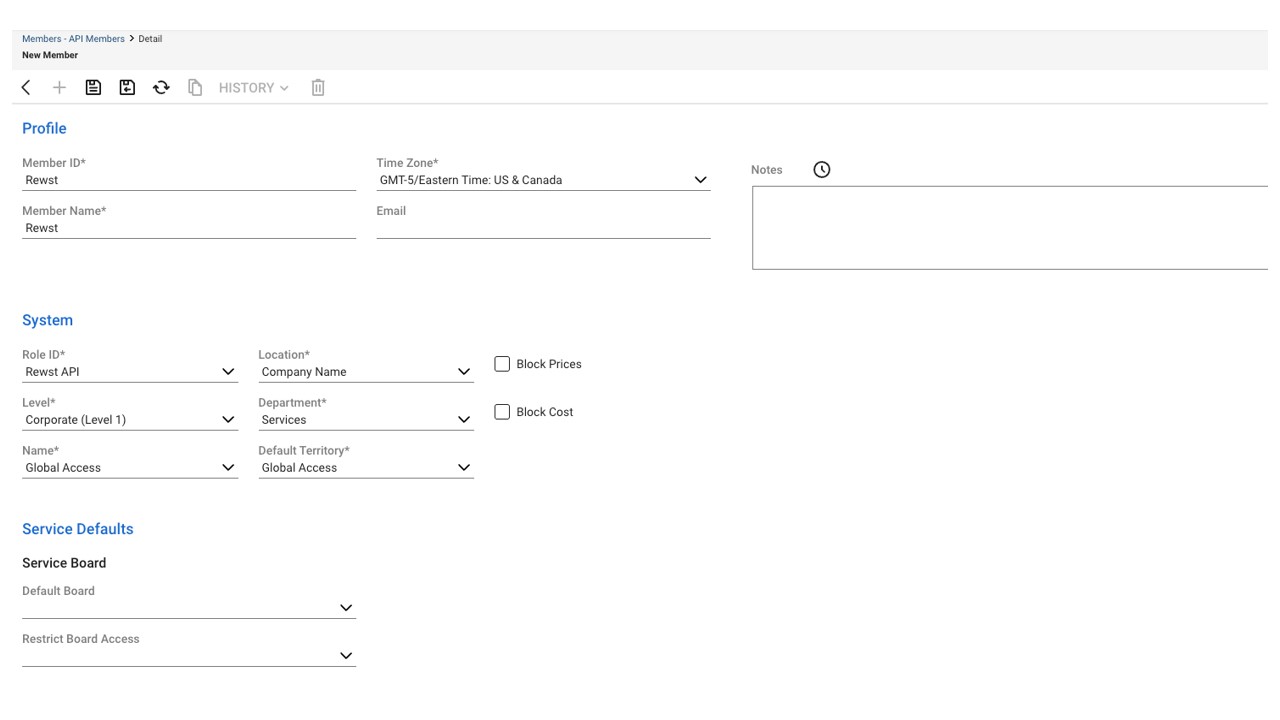
Next, create an API member that Triggr will use to authenticate.
- Navigate to System > Members > API Members
- Click the + button to create a new API member
- Set the Member ID to
Triggr - Set the Member Name to
Triggr - Assign the Triggr API security role you created in Step 1
- Save the API member
Step 3: Generate API Keys
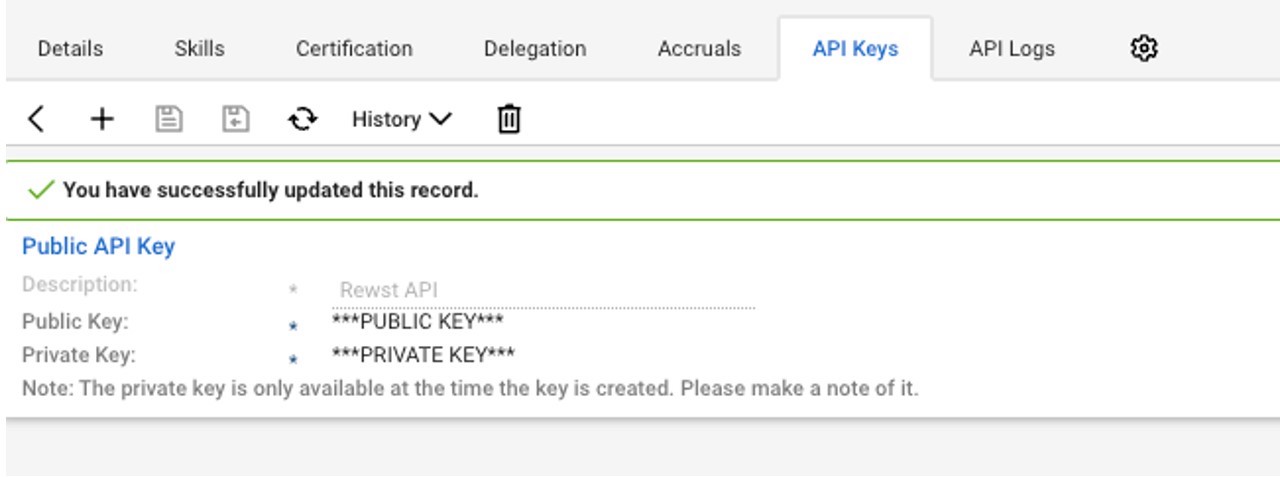
Now generate the public and private API keys.
- Open the API member you just created
- Click on the API Keys tab
- Click + to add a new API key
- Set the Description to
Triggr API - Click Save
- Important: Copy and securely store both the Public Key and Private Key - the private key will only be shown once!
Step 4: Configure in Triggr
With your API credentials ready, configure the integration in Triggr.
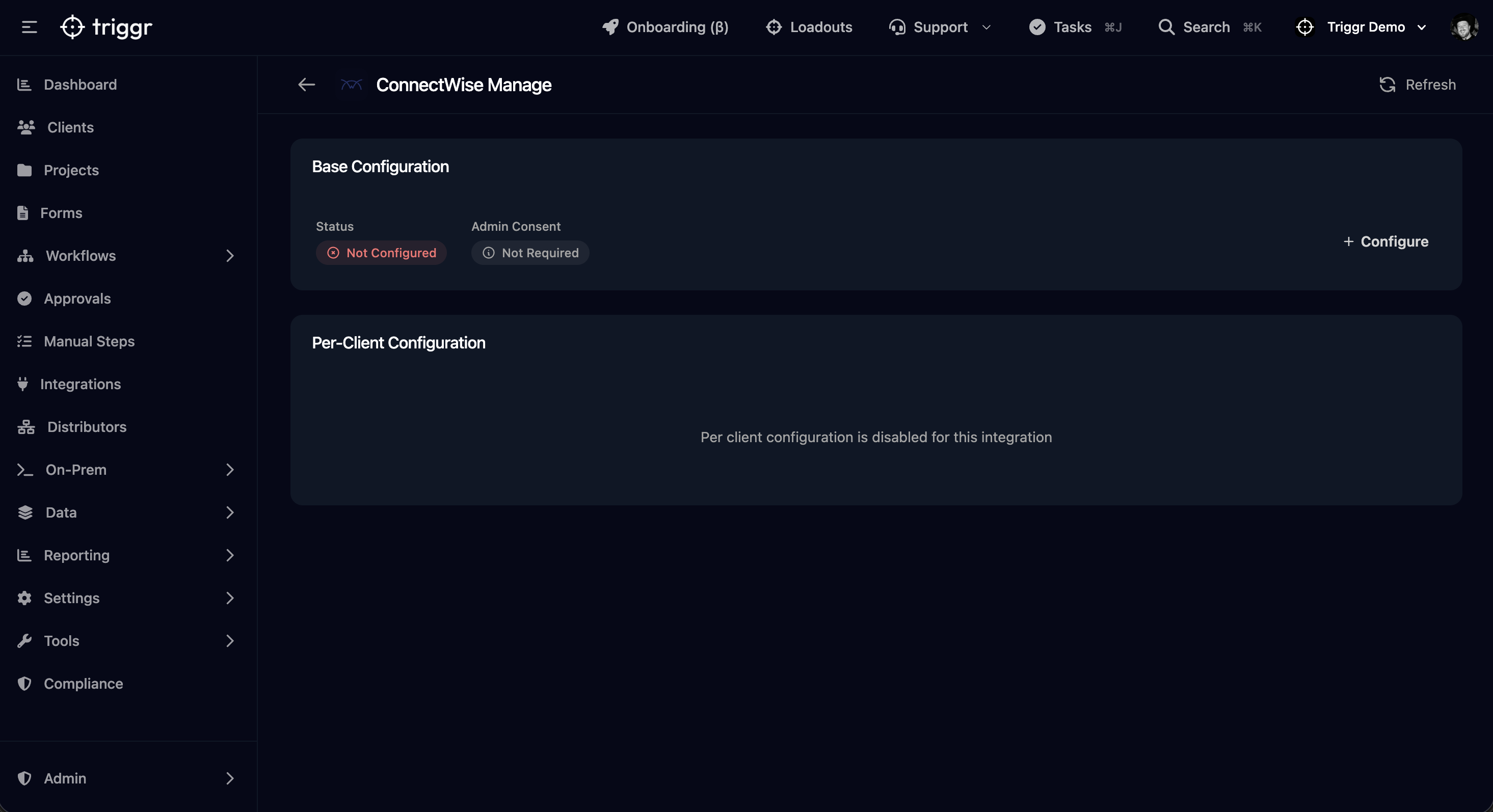
- In Triggr, navigate to Integrations
- Find and select ConnectWise Manage
- Click + Configure to the right of the Base Configuration card
- Enter the following details:
- Hostname: Your ConnectWise URL (e.g.,
na.myconnectwise.net) - Company ID: Your ConnectWise company identifier
- Public Key: The public API key from Step 3
- Private Key: The private API key from Step 3
- API Member Identifier: The Member ID you created in Step 2 (e.g.,
Triggr)
- Hostname: Your ConnectWise URL (e.g.,
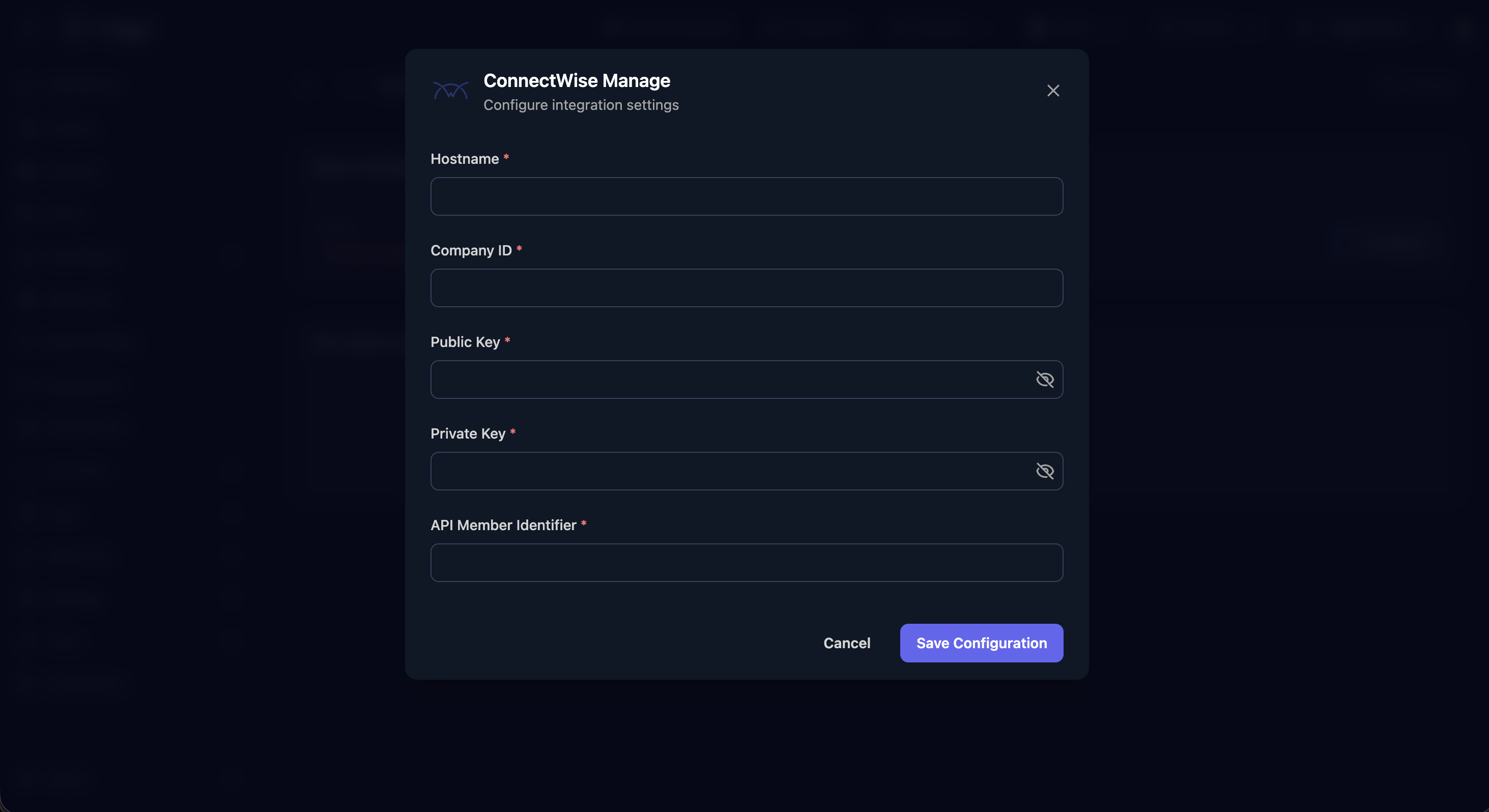
- Click Save Configuration
Permission Requirements
Minimum Permissions (Authentication)
These permissions are required for basic connectivity:
| Module | Area | Permission Level |
|---|---|---|
| System | Member Maintenance | Inquire: All |
| Companies | Company Maintenance | Inquire: All |
Recommended Permissions
For full automation capabilities, configure these additional permissions:
| Module | Area | Permission Level |
|---|---|---|
| Companies | Company Maintenance | Add, Edit, Inquire: All |
| Companies | Contact Maintenance | Add, Edit, Delete, Inquire: All |
| Service Desk | Service Tickets | Add, Edit, Delete, Inquire: All |
| Service Desk | Service Ticket Notes | Add, Edit, Delete, Inquire: All |
| System | Member Maintenance | Inquire: All |
| System | Configuration | Inquire: All |
| Finance | Agreements | Add, Edit, Inquire: All |
| Project | Project Tickets | Add, Edit, Inquire: All |
| Time & Expense | Time Entry | Add, Edit, Inquire: All |
Tip: Start with minimal permissions and add more as needed for specific workflows. Your account manager can help identify the exact permissions required for your automations.
Troubleshooting
Invalid API Credentials
If you receive authentication errors:
- Verify the Public Key and Private Key are entered correctly
- Ensure the API member has the Triggr API security role assigned
- Check that your Company ID matches exactly (case-sensitive)
- Confirm your Hostname is correct and doesn't include
https://
Permission Denied Errors
If certain actions fail with permission errors:
- Navigate to System > Members > API Members in ConnectWise
- Select your Triggr API member and click API Logs
- Review the failed request to identify which permission is missing
- Update the Triggr API security role with the required permission
Checking API Logs
To debug issues, enable API logging in ConnectWise:
- Go to System > Members > API Members
- Select the Triggr API member
- Click API Logs to view recent requests
- Enable Debug Mode for detailed request/response data
Need help? Contact your account manager - we're happy to help configure this integration with you.